
Creating a Campaign
Creating a campaign in Sendwithus is simple! Make sure you have a CSV ready to go that has an “email” column and no spaces in column names.
- Navigate to the Campaigns screen
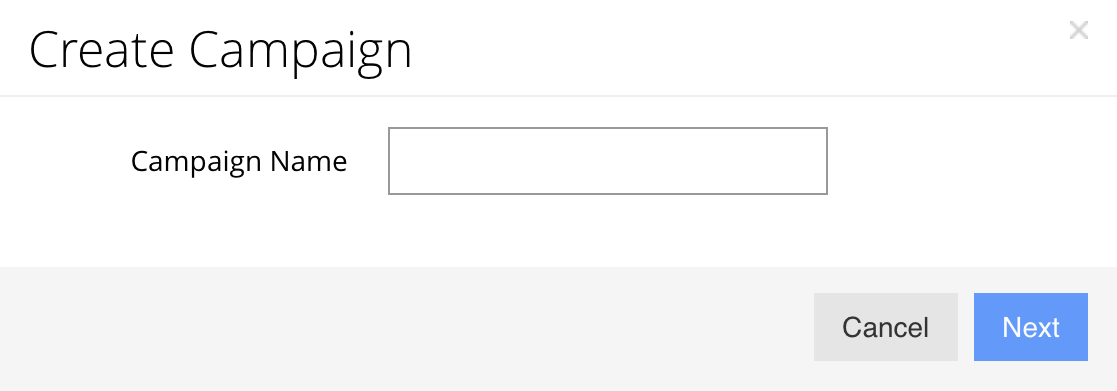
- In the upper right corner click “Create Campaign”

- A prompt will appear asking you to name the campaign. Make sure you call it something meaningful!
- On the Configure Campaign screen set up your campaign
- Write any notes about the campaign. This is useful for other team members
- Select the Template that’s going to be sent
- Pay special attention to the ESP account being used. Always send through a dedicated campaign ESP.
- Upload a CSV of recipients

- Now save your campaign.
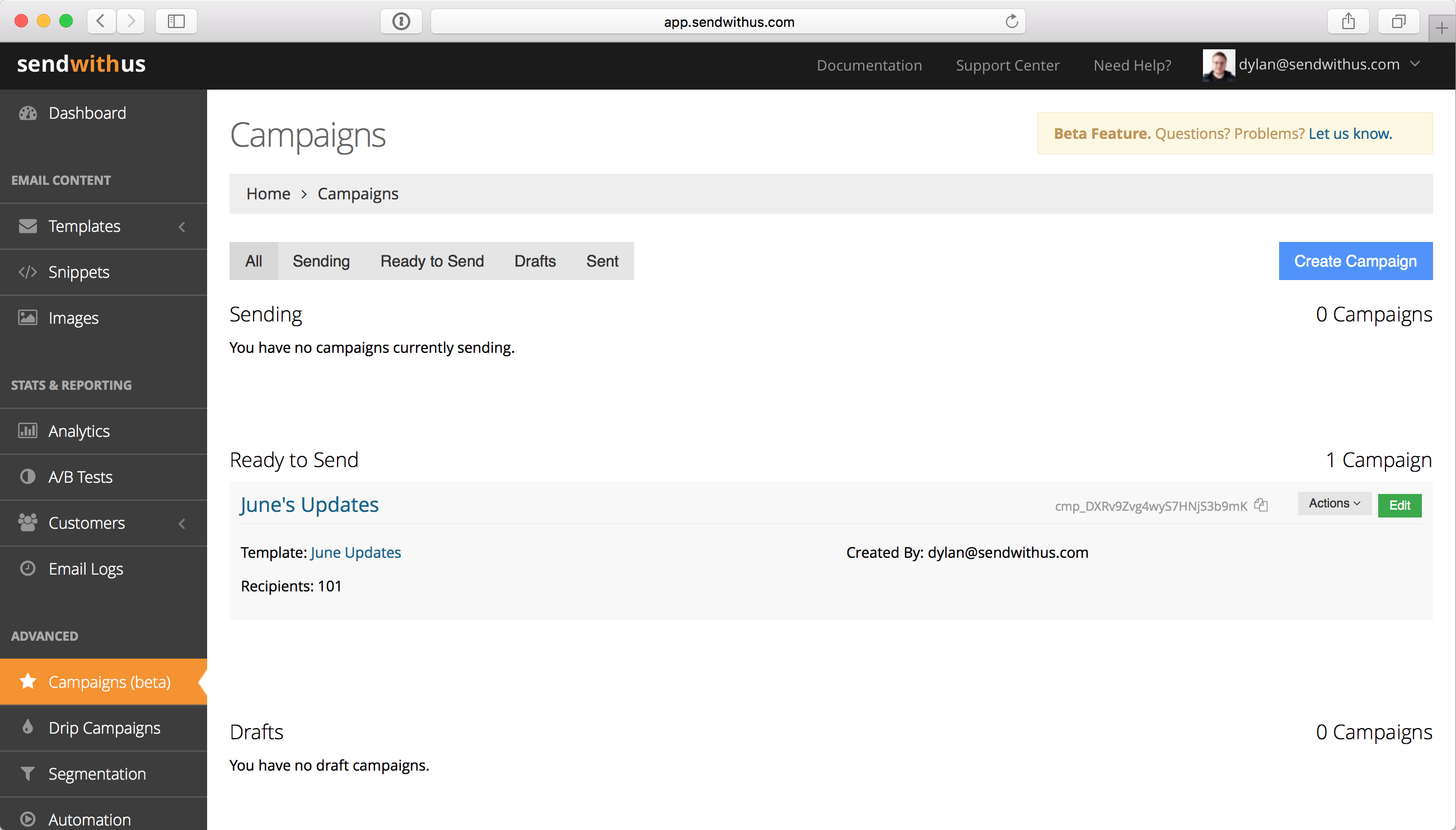
Your campaign is now complete! It may take a while for Sendwithus to fully process the CSV, but once that’s done the campaign will be moved into the “Ready to Send” section. Read on to learn how to preview and send your new campaign.
Campaign Previews
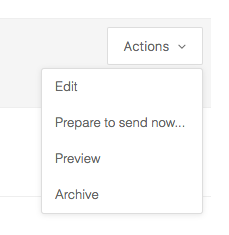
Sendwithus allows you to preview what your campaign by showing you a subset of customers from your CSV. After you’ve created a campaign click “Preview” in the “Actions Menu”
The Preview page has three tabs: Preview Recipients Allows you to see what an email would look like for that recipient.
Recipient Errors Shows any errors in processing the CSV. Sometimes an email address will be invalid or there’s malformed data. Always make sure to check this page.
Device Testing Access this section by selecting Device Test on the Preview Recipient tab.
Sending your Campaign
Now that you have uploaded and thoroughly tested your campaign, you can send it. Simply click the “Actions” menu and click “Prepare to send now…”
A confirmation prompt like the one pictured below will appear.
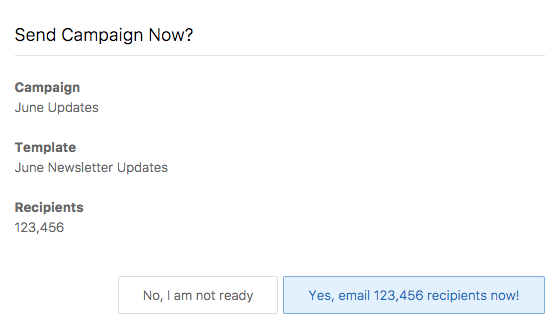
After you’ve confirmed that everything looks good, click “Yes, email X recipients now!” to begin sending.
Scheduling a Campaign
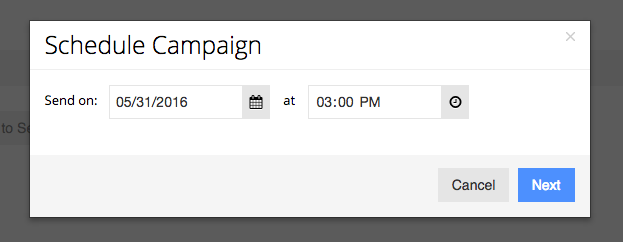
Campaigns can be scheduled from the campaigns list, simply click the “Actions” menu and click “Schedule”. Note that only ready campaigns are schedulable.
A scheduling pop-up will appear with a date and time picker.
FAQ
Are locales supported?
Yes! Locales are fully supported. Like elsewhere with locales, if Sendwithus can’t detect the locale on the customer the default locale (typically en-US) is sent.
Why are my open and click rates different than other campaign tools I use?
Many email campaign tools will show your open/click rates as:
Successful sends don’t include bounces or failed sends. Also note that other campaign tools may not use unique opens and will count re-opens towards the total count. This can be problematic as some customers may open an email 5 times or more and obfuscating your actual open rate.
Sendwithus measures analytics as unique opens divided by the total number of sends. This gives you a more accurate picture of your deliverability.
See this page in our knowledge base for more information on how Sendwithus handles analytics.
What do my CSV columns need to look like?
CSV columns can be technically anything, but Sendwithus requires the column containing email addresses to be named “email”. Also, coloumn names with spaces should be avoided as those variables can not be used in the template.
Can I A/B test a campaign?
Yes! A/B testing is fully supported. Note that you’ll have to create the A/B test on the template as per usual.
Are Microsoft Excel (.xlsx) files supported?
Not currently, but Excel lets you export to a CSV. Click here to learn how.